Documentation sections
Create and verify a File Record
This guide shows how to create a simple Electronic Registry File Record and verify the same exact file/hash later.
Before you start
Use a harmless test file. Do not use private, sensitive, legal, financial, medical, or confidential files during beta testing.
The file itself is not uploaded or shared by default. The public record is based on the exact file/hash.
Verification checks exact matches. Even a small file change creates a different hash.
Step-by-step guide: Create and verify a File Record
Follow these steps in order when testing the beta flow. The screenshots show the basic path: sign in, add recording units if required, create a File Record, and verify the same exact file or hash.
Open the beta site
Open the beta site and sign in with Google if you want to create records or manage your private dashboard.
Public verification can still be used without signing in.
What to check: Use the beta environment for this walkthrough, not the public production domain.

Check recording capacity
Successful public registry write actions consume recording units. Verification is free.
If the dashboard shows that you need more units, use Add units to open the capacity page.
What to check: If you already have enough units, you can continue directly to Create record.

Choose a unit package if required
Choose one package, then continue to the beta/test checkout flow if the environment requires it.
Do not use this documentation as production payment guidance. It describes the beta/test walkthrough only.

Complete the beta/test checkout step if required
This beta uses Stripe's test/mock payment environment. No real payment is made in this test flow.
For the Stripe test card, enter 4242 4242 4242 4242. Use any future expiration date, for example 12/34. Use any CVC, for example 123. Use any name or email if the form requires it.
This is a beta/test checkout instruction only. It is not a production payment method and does not imply users can avoid payment in production.
What to check: No real payment is made in this test flow.

Start creating a File Record
Go to Create record and select File Record. This is the recommended first beta path for a simple test.
A File Record creates a public record for one exact file hash while keeping the file private unless you choose to share it.
What to check: For this walkthrough, choose File Record, not Public Reference or advanced timeline workflows.

Select or prepare a harmless test file
Choose the exact test file in your browser. The browser calculates the file hash locally.
The normal browser recording flow sends the resulting hash for recording; the file itself is not uploaded in this flow.
What to check: The selected file name and hash should match the harmless test file you intend to record.

Review the record details
Use the Review before recording section to confirm what will be recorded publicly and what remains private dashboard data.
Read the permanent-record confirmation carefully. A public registry entry cannot be silently changed or removed after recording.
Create the File Record
Check the confirmation box and select Confirm record. If your account does not have enough units, the page will tell you how many units are required and link you to Add units.
Do not close the page while the recording action is processing.
View the successful result
After the write succeeds, the result page shows that the public record was created or found as an existing matching record.
The result may include a verification page link or verification information that can be used later.
What to check: Save or copy the verification information if you will need to share it later.
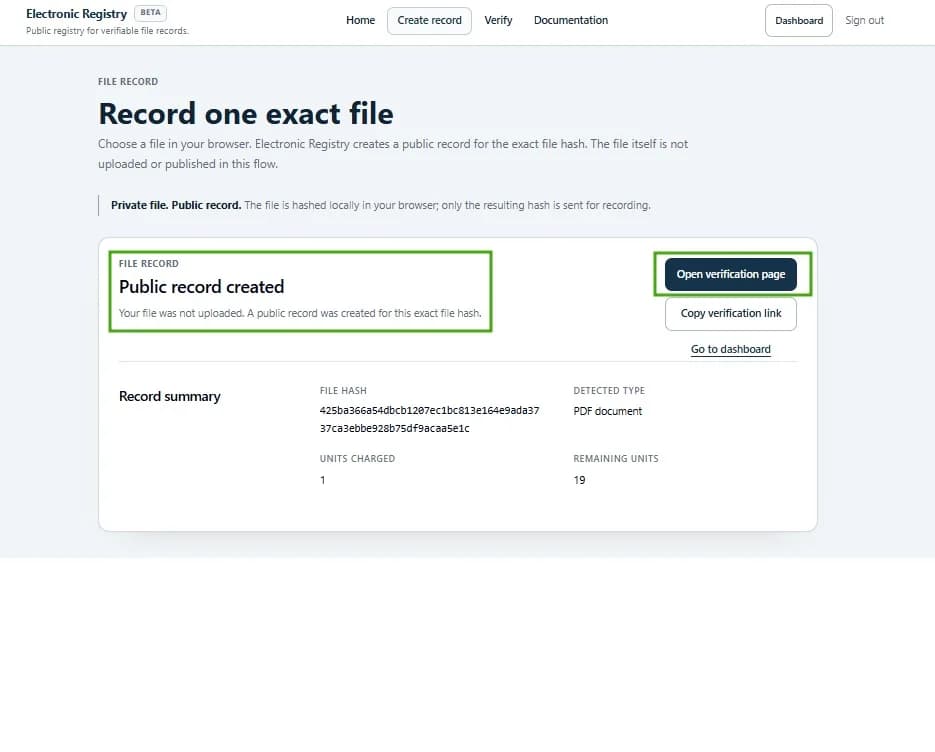
Save or copy the record/verification information
Keep the verification link or exact hash if you want to verify the file again later or share the check with someone else.
Sharing a verification link does not share the private file unless you separately provide the file.
Verify the same file or hash
Open Verify and choose the same file or paste the exact verification code/hash.
Electronic Registry checks whether an exact matching public record exists and may show related public history when available.
What to check: Use the same exact file or paste the exact hash. A modified file will not match.

Read the verification result
If the result says an exact file record was found, the checked file/hash matches a public record in Electronic Registry.
Technical details can help reviewers inspect the recorded hash, timestamps, and related public context.

Understand what the result means
What this can show
- A matching public record exists for this exact file/hash.
- The record was created at the displayed time.
- The record can be checked later by someone else.
What this does not prove
- It does not prove the content is true.
- It does not prove ownership or authorship.
- It does not prove copyright.
- It does not prove legal validity.
- It does not certify or officially approve the file.
- It does not prove compliance.
- It does not prove the file is non-AI-generated.
Troubleshooting
Next steps
After completing the walkthrough, verify that you can explain the result without calling it legal proof, ownership proof, copyright protection, certification, or truth verification.